(41 intermediate revisions by the same user not shown)
Line 1:
Line 1:
== Overview ==
== Overview ==
Untangle NG Firewall deployment in AWS can secure Internet access for other AWS instances. This scenario is useful if you have for example [https://aws.amazon.com/workspaces Amazon Workspaces] and you need to apply Intrusion Prevention, Content Filtering, Bandwidth Control, and other next generation firewall capabilities to those instances. This type of deployment requires advanced Virtual Private Cloud (VPC) configuration to establish an internal subnet for AWS instances that routes through NG Firewall.
[[File:Aws_schemas_advanced.png|thumb|right|upright=1.4|alt=Untangle NG Firewall in relation to AWS instances and VPN tunnels.|Untangle NG Firewall in relation to AWS instances and VPN tunnels.]]Untangle NG Firewall deployment in AWS can secure Internet access for other AWS instances. This scenario is useful if you have for example [https://aws.amazon.com/workspaces Amazon Workspaces] and you need to apply Intrusion Prevention, Content Filtering, Bandwidth Control, and other next generation firewall capabilities to those instances. This type of deployment requires advanced Virtual Private Cloud (VPC) configuration to establish an internal subnet for AWS instances that routes through NG Firewall.
[[File:Aws_schemas_advanced.png|thumb|none|upright=1.5|alt=Diagram illustrating Untangle NG Firewall in relation to AWS instances and VPN tunnels.|Diagram illustrating Untangle NG Firewall in relation to AWS instances and VPN tunnels.]]
== Before you begin ==
== Before you begin ==
<span style="color: #000000; font-weight: 400; text-decoration: none;">This document assumes you have an AWS account with a VPC created. If not, you will need to create a VPC prior to using this document.</span>
*Follow the steps outlined in [https://wiki.untangle.com/index.php/Deploying_NG_Firewall_in_AWS Deploying NG Firewall in AWS].
*Review [https://docs.aws.amazon.com/AmazonVPC/latest/UserGuide/VPC_Subnets.html VPCs and Subnets] in the AWS documentation.
<span style="color: #000000; font-weight: 400; text-decoration: none;">To use this document, you will need to have a VPC with 2 subnets. This document will describe the steps to create the subnets. </span><span style="color: #000000; font-weight: 400; text-decoration: none;">If you need to create a VPC, we recommend:</span>
<span style="color: #000000; font-weight: 400; text-decoration: none;">Create one that authorizes all traffic: NGFW is by default locked down to only allow HTTPS and SSH when it is initialized. Services → VPCs → Security → Security Groups</span>
# <span style="color: #000000; font-weight: 400; text-decoration: none;">If you wish, you can later restrict more ports in that security group, after you're done configuring NGFW.</span>
# <span style="color: #000000; font-weight: 400; text-decoration: none;">Make sure to authorize traffic from your local machine/network for access.</span>
# <span style="color: #000000; font-weight: 400; text-decoration: none;">Create and select the “Save” button</span>
<span style="color: #000000; font-weight: 400; text-decoration: none;">Create 2 subnets, one for the external NGFW interface and the other for the internal one. Make sure the subnets are in the same VPC and within the same availability zone. Navigate to Services → VPCs → Subnets. In this example, the VPC Network we are using is: 172.31.0.0/16</span>
<span style="color: #000000; font-weight: 400; text-decoration: none;">Create the External Subnet:</span>
# <span style="color: #000000; font-weight: 400; text-decoration: none;">Set the Name Tag: e.g. </span>''<span style="color: #000000; font-weight: 400; text-decoration: none;">Untangle - Public</span>''
<span style="color: #000000; font-weight: 400; text-decoration: none;">You will need to create two network interfaces. Create these interfaces prior to launching the Untangle AMI. </span>
<span style="color: #000000; font-weight: 400; text-decoration: none;">Create the External Interface:</span>
<span style="color: #000000; font-weight: 400; text-decoration: none;"></span><span style="color: #000000; font-weight: 400; text-decoration: none;">Once you’ve saved the private network, you’ll need to disable the Source/Dest Check - this is so Untangle can NAT.</span>
# <span style="color: #000000; font-weight: 400; text-decoration: none;">Select the Internal interface you created:</span>
# Then select the “Action” button and Select Change Source/Desc<span style="font-size: 0.939em;"> Check</span>
Create and add Public IP to External Network Interface
== Step 1. Configure a Security Group ==
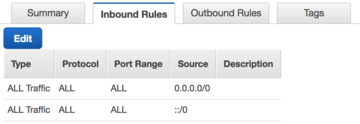
AWS instances and network interfaces inherit traffic rules defined by [https://docs.aws.amazon.com/vpc/latest/userguide/VPC_SecurityGroups.html security groups]. The security group assigned to your NG Firewall instance and instances on the private network behind NG Firewall should have an open policy to avoid conflicts. Confirm that the security group designated for your instances has rules to permit all incoming and outgoing traffic.
# <span style="color: #000000; font-weight: 400; text-decoration: none;">Select the “Allocate new Address” button and </span><span style="color: #000000; font-weight: 400; text-decoration: none;">Navigate to Services → EC2 → ElasticIPs</span>
#In the [https://aws.amazon.com/console AWS Management Console] go to your VPC configuration from the '''Services''' menu.
# Public IP Address is associated with the Public Interface
== Step 2. Configure a Network ACL ==
[[File:Aws-networkacls-inbound.png|thumb|upright=1.5|Network ACL with permissive inbound rule]]Each subnet inherits the policies of [https://docs.aws.amazon.com/vpc/latest/userguide/vpc-network-acls.html network ACLs]. Confirm that the network ACL designated for your internal subnet contain rules to permit all incoming and outgoing traffic.
#In the [https://aws.amazon.com/console AWS Management Console] go to your VPC configuration from the '''Services''' menu.
<span style="color: #000000; font-weight: 400; text-decoration: none;">Create a new route table and add a default route using the internal network interface you’ve created:</span>
#Click '''Network ACLs'''.
#Select the default network ACL or a custom network ACL if designated for your internal subnet.
#In the Inbound Rules tab, click '''Edit'''.
#Add or confirm a rule allowing all traffic for all protocols where the source is 0.0.0.0/0.
#Confirm this same policy in the '''Outbound Rules''' tab.
[[File:Aws-subnet-wiz.png|thumb|upright=1.2|AWS subnet configuration wizard]]To route traffic for AWS instances through NG Firewall you must designate an internal [[https://docs.aws.amazon.com/vpc/latest/userguide/working-with-vpcs.html#AddaSubnet subnet]]. You assign this subnet to network interfaces belonging to your AWS instances and NG Firewall.
#In the [[https://aws.amazon.com/console AWS Management Console]] go to your VPC configuration from the '''Services''' menu.
#Click '''Subnets'''.
#Click '''Create Subnet'''.
#Select the VPC containing your NG Firewall and AWS instances.
#Select the same availability zone as your NG Firewall instance.
#Assign an IPv4 block that is within the scope of your VPC.
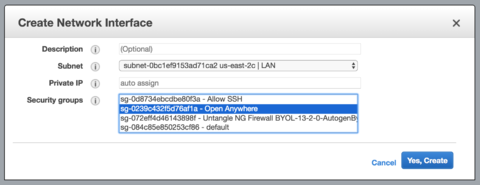
[https://docs.aws.amazon.com/vpc/latest/userguide/VPC_ElasticNetworkInterfaces.html Network interfaces in AWS] attach to instances and facilitate network access to the VPC. The NG Firewall and instances protected by the firewall must be assigned to the internal subnet you created in the previous step. If you created your instances and network interfaces prior to creating the internal subnet, you can create new network interfaces to associate your instances to the internal subnet.
#<span style="color: #000000; font-weight: 400; text-decoration: none;">Set a Name Tag for the Route: e.g. </span>''<span style="color: #000000; font-weight: 400; text-decoration: none;">Untangle - Private</span>''
#In the [https://aws.amazon.com/console AWS Management Console] go to your EC2 configuration from the '''Services''' menu.
#<span style="color: #000000; font-weight: 400; text-decoration: none;">Select the VPC the Untangle is in: </span>''<span style="color: #000000; font-weight: 400; text-decoration: none;">e.g. vpc-79ceo5f0</span>''
#Click '''Network Interfaces'''.
#<span style="color: #000000; font-weight: 400; text-decoration: none;">Add the default route and attach it to the internal network interface:</span>
## Next<span style="font-size: 0.939em;">, select the Subnet Associations tab and select the “Edit” button:</span>
[[File:Aws_attach_iface.png|thumb|right|upright=1.3|Attaching a network interface to an instance in AWS]]After you create a network interface you must attach it to an instance.
#In the Network Interfaces screen select an available interface that belongs to the internal subnet.
#In the '''Actions''' menu choose '''Attach'''.
#Select the Instance ID of your NG Firewall
#Repeat the steps for creating and attaching network interfaces for all instances that you intend to place on the internal subnet.
{{Note|text=If you attach a new network interface to an instance other than NG Firewall, it is recommended to detach the previous network interface to prevent traffic from bypassing NG Firewall. To detach an interface, select the network interface and choose '''Detach''' from the '''Actions''' menu. }}
== Step 6. Disable source and destination check ==
[[File:Aws-src-check.png|thumb|right|upright=.8|Disabling source and destination check on a network interface in AWS]]By default, the AWS VPC configuration prevents NAT routing. You must override this behavior by [https://docs.aws.amazon.com/vpc/latest/userguide/VPC_NAT_Instance.html#EIP_Disable_SrcDestCheck disabling source and destination check] for the internal network interface of NG Firewall.
==<span style="color: #000000; text-decoration: none;">Create Internet Gateway</span>==
#In the network interfaces screen select the internal network interface attached to NG Firewall.
<span style="color: #000000; font-weight: 400; text-decoration: none;">The VPC must have an Internet Gateway. Most VPC will already have one pre-configured. If one does not exist, create one:</span>
#In the '''Actions''' menu choose '''Change Source/Dest. Check'''.
#Set the value to '''Disabled'''.
#Click '''Save'''.
# <span style="color: #000000; font-weight: 400; text-decoration: none;">Navigate to Services → VPC → Internet Gateway</span>
To direct traffic through your NG Firewall instance you must create a [https://docs.aws.amazon.com/vpc/latest/userguide/VPC_Route_Tables.html route table] with NG Firewall as a gateway and associate it with the internal subnet.
# <span style="color: #000000; font-weight: 400; text-decoration: none;">Enter a Name tag: e.g. VPI -IGW</span>
# <span style="color: #000000; font-weight: 400; text-decoration: none;">Navigate to Services → EC2 → Select the Launch Instance Button</span>
[[File:Aws-default-route.png|thumb|right|upright=1.2|Adding a default route to a route table in AWS]]Before adding the default route, refer to the network interfaces screen and capture the Network Interface ID of the internal interface attached to your NG Firewall instance.
# <span style="color: #000000; font-weight: 400; text-decoration: none;">Select AWS Marketplace and search for Untangle</span>
# <span style="color: #000000; font-weight: 400; text-decoration: none;">Select the “Launch” button for the Untangle NG Firewall</span>
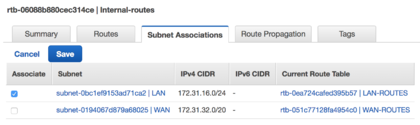
To associate the route table to your internal subnet:
## <span style="color: #000000; font-weight: 400; text-decoration: none;">Verify the Instance is running</span>
#Select the new route table entry and click '''Subnet Associations''' from the configuration panel.
## <span style="color: #000000; font-weight: 400; text-decoration: none;">Make note of the Public IP</span><span style="color: #000000; font-weight: 400; text-decoration: none;"></span>
#Click '''Edit''' and associate the route table to your internal subnet.[[File:Aws-associate-subnet.png|thumb|none|upright=1.4|Associating a subnet in AWS]]
# <span style="color: #000000; font-weight: 400; text-decoration: none;">Login to Untangle</span>
<br>Your browser may show a message indicating that connecting to your new server needs caution. This message is simply telling you that there isn't yet a server certificate in place because the server is not yet configured. Once the Untangle setup process is complete, this warning will no longer occur when you direct a browser to your new server.
Untangle NG Firewall in relation to AWS instances and VPN tunnels.
Untangle NG Firewall deployment in AWS can secure Internet access for other AWS instances. This scenario is useful if you have for example Amazon Workspaces and you need to apply Intrusion Prevention, Content Filtering, Bandwidth Control, and other next generation firewall capabilities to those instances. This type of deployment requires advanced Virtual Private Cloud (VPC) configuration to establish an internal subnet for AWS instances that routes through NG Firewall.
AWS instances and network interfaces inherit traffic rules defined by security groups. The security group assigned to your NG Firewall instance and instances on the private network behind NG Firewall should have an open policy to avoid conflicts. Confirm that the security group designated for your instances has rules to permit all incoming and outgoing traffic.
Select the default security group or a custom security group you designate for instances belonging to your internal subnet.
In the Inbound Rules tab, click Edit.Security group with permissive inbound rule
Add or confirm a rule allowing all traffic for all protocols where the source is 0.0.0.0/0.
Confirm this same policy in the Outbound Rules tab.
Step 2. Configure a Network ACL
Network ACL with permissive inbound rule
Each subnet inherits the policies of network ACLs. Confirm that the network ACL designated for your internal subnet contain rules to permit all incoming and outgoing traffic.
Select the default network ACL or a custom network ACL if designated for your internal subnet.
In the Inbound Rules tab, click Edit.
Add or confirm a rule allowing all traffic for all protocols where the source is 0.0.0.0/0.
Confirm this same policy in the Outbound Rules tab.
Step 3. Create an internal subnet
AWS subnet configuration wizard
To route traffic for AWS instances through NG Firewall you must designate an internal [subnet]. You assign this subnet to network interfaces belonging to your AWS instances and NG Firewall.
Select the VPC containing your NG Firewall and AWS instances.
Select the same availability zone as your NG Firewall instance.
Assign an IPv4 block that is within the scope of your VPC.
Click Create to confirm the new subnet.
Step 4. Create a network interface
Network interfaces in AWS attach to instances and facilitate network access to the VPC. The NG Firewall and instances protected by the firewall must be assigned to the internal subnet you created in the previous step. If you created your instances and network interfaces prior to creating the internal subnet, you can create new network interfaces to associate your instances to the internal subnet.
Select the internal subnet you created in the previous step.
Keep Private IP as auto assign.
Select the permissive security group you created in the first step.
Click Yes, Create.
Step 5. Attach the network interface
Attaching a network interface to an instance in AWS
After you create a network interface you must attach it to an instance.
In the Network Interfaces screen select an available interface that belongs to the internal subnet.
In the Actions menu choose Attach.
Select the Instance ID of your NG Firewall
Repeat the steps for creating and attaching network interfaces for all instances that you intend to place on the internal subnet.
If you attach a new network interface to an instance other than NG Firewall, it is recommended to detach the previous network interface to prevent traffic from bypassing NG Firewall. To detach an interface, select the network interface and choose Detach from the Actions menu.
Step 6. Disable source and destination check
Disabling source and destination check on a network interface in AWS
By default, the AWS VPC configuration prevents NAT routing. You must override this behavior by disabling source and destination check for the internal network interface of NG Firewall.
In the network interfaces screen select the internal network interface attached to NG Firewall.
In the Actions menu choose Change Source/Dest. Check.
Set the value to Disabled.
Click Save.
Step 7. Create a route table
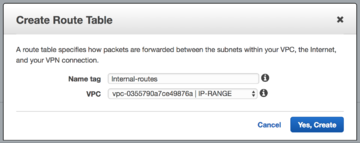
To direct traffic through your NG Firewall instance you must create a route table with NG Firewall as a gateway and associate it with the internal subnet.
Click Create Route Table.Creating a route table in AWS
Assign the route table a Name Tag and the VPC containing your NG Firewall and associated instances.
Click Yes, Create.
Step 8. Add a default route
Adding a default route to a route table in AWS
Before adding the default route, refer to the network interfaces screen and capture the Network Interface ID of the internal interface attached to your NG Firewall instance.
In the Route Table screen, select the route table you created in the previous step.
Select the Routes tab.
Click Edit.
Click Add another route.
In the Destination field, enter 0.0.0.0/0.
In the Target field, enter the Network Interface ID of the internal network interface attached to your NG Firewall instance.
Click Save.
Step 9. Associate the route table
To associate the route table to your internal subnet:
Select the new route table entry and click Subnet Associations from the configuration panel.
Click Edit and associate the route table to your internal subnet.Associating a subnet in AWS